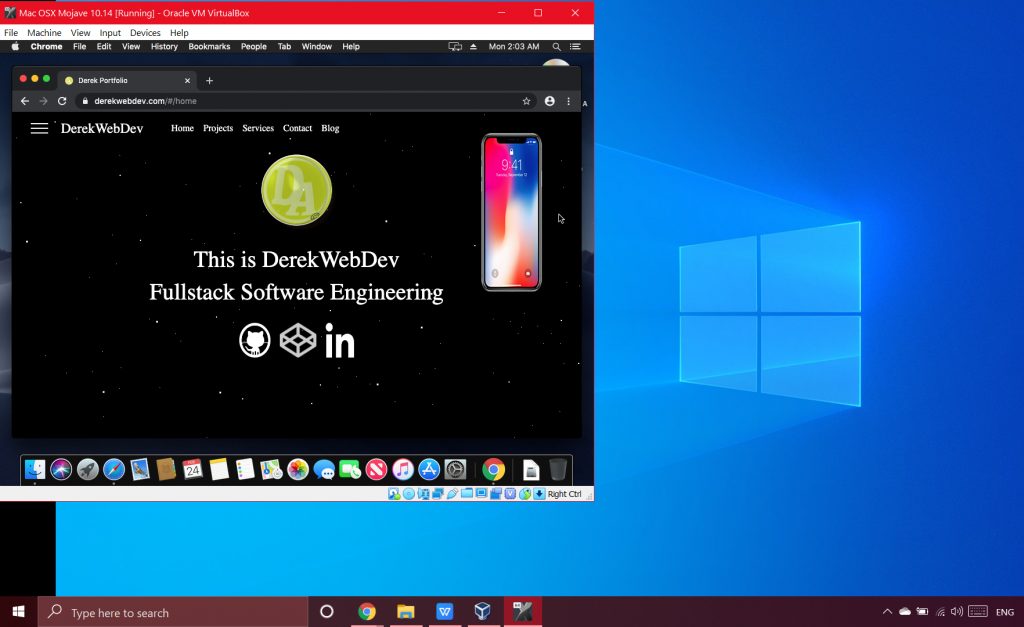

In this article I will be covering how to set up and increase the speed of your virtual environments for Cross-Platform Development. We will start off by asking ourselves these 5 questions?
- Firstly, what is a Virtual Environment?
- Why do we need them?
- What kind of Engineers use Virtual Environments?
- Which one is right for you?
- How do we increase the speed of a virtual environment?
Now I must start this article off with a disclaimer. This article will tend to favor a Windows user as there are natural advantages and disadvantages of having a Mac. Having one type of computer or another will always have certain trade offs but the idea here is to level the playing field without having to shell out money for both or having to deal with a dual boot scenario which I personally do not consider pleasant. There will be something for everyone in this article. *Always get your software from approved vendors and support the developers!*
- A virtual environment is anything that a developer uses to emulate or simulate another machine’s function. Such as a server, cell phone, or an entire operating system system such as Linux or Mac/ Windows. In this article we will be focusing on setting up a Mac environment inside a Windows OS. But the same principles can be applied to your specific circumstance. We will using a tool be Oracle and we need a host machine with (usually Intel) Virtulization Technology (enabled) or capable. Our software of choice to achieve this will be VirtualBox by Oracle (although other solutions exist).
- We need a virtual environment in order to develop something locally and work out all the bugs before we put it into a production build and deploy it. Fairly straight forward.
- Anyone can be using a virtual environment sometimes without even knowing it. The most simple would be any “live server” extension added onto an IDE for something as simple as an html static page with hot reloading. Other virtual environments that are useful are local by Flywheel for WordPress and PHP Development and of course Node.js which is a JavaScript based server side scripting language usually used for React, React Native, Angular.js or Vue.js.
In this article we will be emulating a Mac OS inside Windows with a virtual environment being used for the development of an application and further Virtualization inside our Virtualization with an iPhone emulator. Expo is a common choice for this although there are others out there. When thought of like this it can become a little confusing. Imagine when you hold a mirror in-front of another mirror. This can give you an idea of how complex Virtualization Technology can become. But let’s keep things simple so we don’t become overwhelmed.
- Which one is right for you? This answer is completely up to the developer, their specific solution needed and the type of hardware at their disposal. In this specific situation we have a gaming laptop running on Windows with 16gb of RAM and a fairly powerful GPU (graphics processing unit). We want to install Mac OS but first we must condition the computer with a .bat file (ore Windows batch file) to make the computer/ software understand what is happening with the foreign OS coming into play. Save the following with text file a .bat extension and “Run as Administrator”. We are using High Sierra Mac OSX in this instance so commands can be different depending on what you name the virtual machine and what OS you are installing. Please consult VirtualBox documentation and familiarize yourself with the software before starting.
—> https://www.virtualbox.org/wiki/Documentation
cd “C:Program Files\Oracle\VirtualBox”
VBoxManage.exe modifyvm “Your-VM-Name” –cpuidset 00000001 000306a9 04100800 7fbae3ff bfebfbff
VBoxManage setextradata “Your-VM-Name” “VBoxInternal/Devices/efi/0/Config/DmiSystemProduct” “MacBookPro11,3”
VBoxManage setextradata “Your-VM-Name” “VBoxInternal/Devices/efi/0/Config/DmiSystemVersion” “1.0”
VBoxManage setextradata “Your-VM-Name” “VBoxInternal/Devices/efi/0/Config/DmiBoardProduct” “Mac-2BD1B31983FE1663”
VBoxManage setextradata “Your-VM-Name” “VBoxInternal/Devices/smc/0/Config/DeviceKey” “ourhardworkbythesewordsguardedpleasedontsteal(c)AppleComputerInc”
VBoxManage setextradata “Your-VM-Name” “VBoxInternal/Devices/smc/0/Config/GetKeyFromRealSMC” 1
Hopefully with no errors we can now move on to installing the operating system.
- Now that we have installed our virtual OS let’s talk about how to make it faster? Like I mentioned earlier we have several choices to make our Virtualized machine faster and the biggest constraint being your hardware. If you can try to install it all on an SSD for starters. Secondly you must tweak the settings in our VirtualBox to get the most we can out of our new environment. Turn the GPU settings up as high as possible and close all non-essential programs running on our host machine. Find a good balance on all your settings because it’s actually counter-productive to devote all resources to the virtual machine because it is piggy backing off our host unit. Find what works best for you and stick with it until you get the best performance. In the end I found myself with a very fast MacOS Virtual Machine.
Please remember the newest versions of things are not always the best. If you encounter any issues remember; Google is your best friend. You may need special bootloader files etc. https://www.geekrar.com/fix-efi-internal-shell-on-macos-mojave-on-virtualbox/ Any decent programmer has found themselves having to downgrade to previous releases because of backward compatibility issues. Thank you for reading and happy hacking!